Execution Control
The execution control panel allows you to run, step through, and reset your assembly programs. It provides essential controls for managing program execution within the simulator.
Execution Controls
- Run: Starts or resumes program execution until a breakpoint is hit or the program ends.
- Step: Executes the next instruction.
- Reset: Stops execution and resets the program state to the beginning.
- Pause: Temporarily halts execution, allowing you to inspect the current state.
 Figure: Execution control buttons in the simulator panel.
Breakpoints
CREATOR supports breakpoints to help with debugging. To set a breakpoint, click on any instruction in the instruction list. A red dot will appear next to the instruction, indicating an active breakpoint. When the program execution reaches a breakpoint, it will pause, allowing you to inspect registers, memory, and other state information.
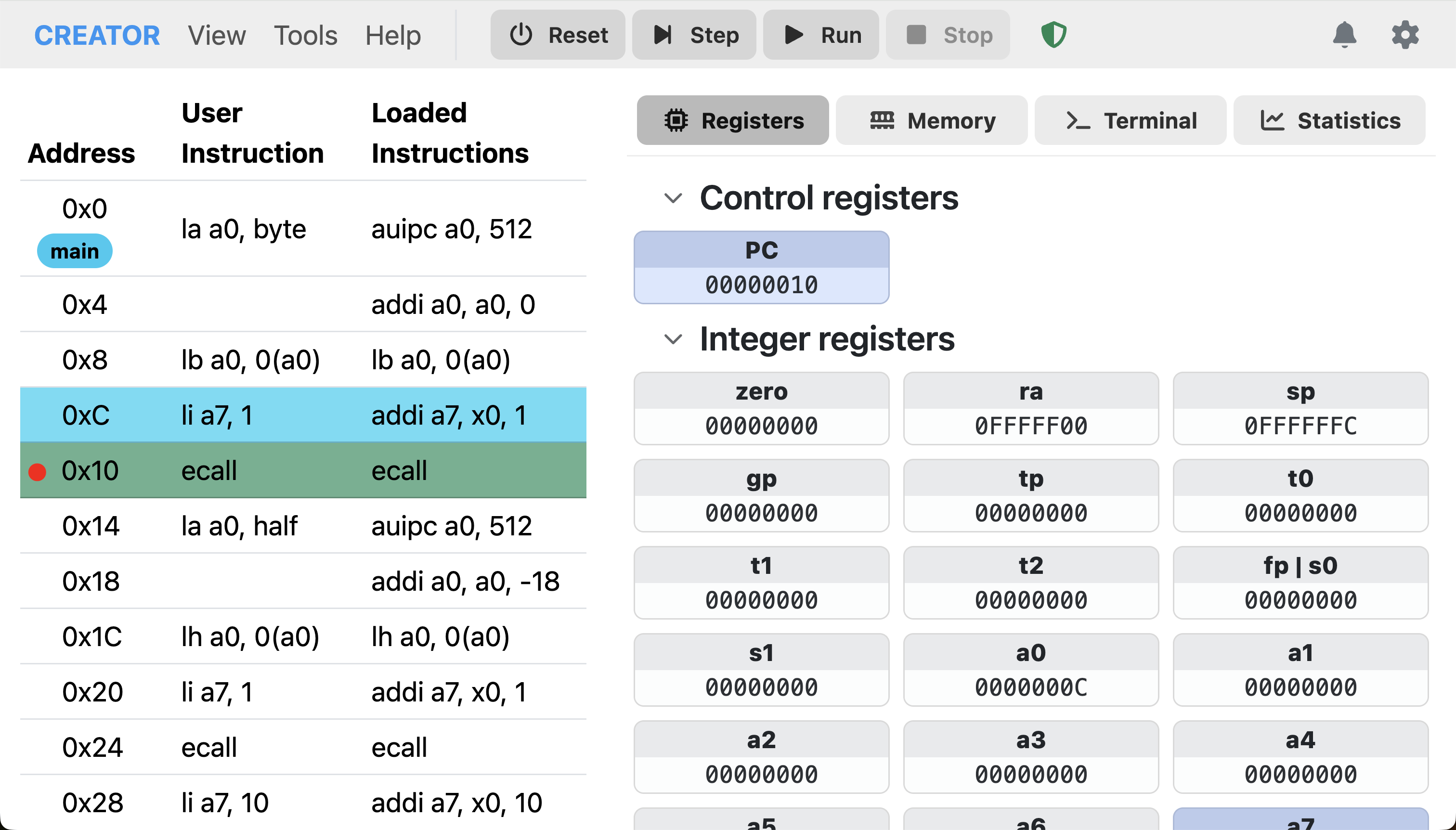 Figure: Execution paused at a breakpoint.
Execution Modes
- User Mode: Standard execution mode with full access to user-level instructions.
- Kernel Mode: Elevated execution mode for system-level instructions (if supported by the architecture).
For more information, see Privileged Instructions.
Interrupt Handling
Some architectures support interrupts. In such cases, CREATOR reacts according to the architecture's interrupt handling mechanisms. RISC-V and Z80 have their own interrupt models that are simulated accordingly.
CREATOR has two interrupt handlers: the default "CREATOR" handler, and a custom architecture-defined one. The CREATOR handler is the simplest of the two, it only handles architecture-defined system calls (see CREATOR handler), and treats all other interrupts as errors. On the other hand, the custom handler allows full control over interrupts, which requires writting a custom interrupt handler in the program.
You can modify the currently used handler in the configuration.
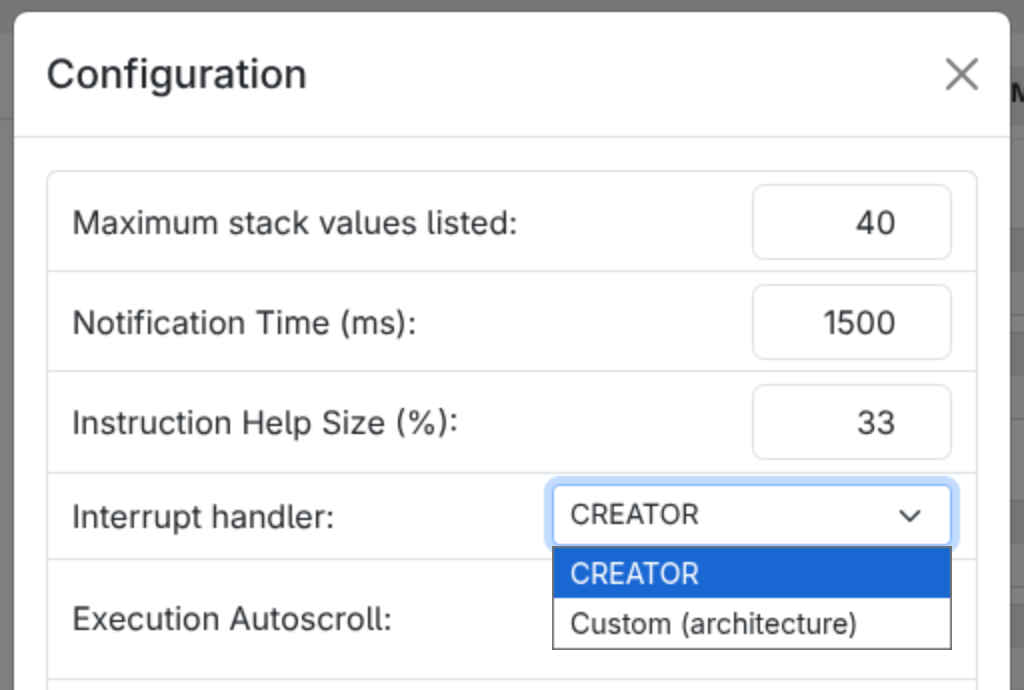 Figure: Modifying the interrupt handler.
For more information, see Interrupt Support.